Browsing with a STAC Browser
The Landing Page
WarmWorld has a STAC browser with a customized design. The landing page is displayed below. Besides the logo and a description we can see a list of collections oder the heading “Catalogs”. The buttons Tiles, List, Ascending and Descending allow sorting of the collections. The two fields allow a basic filtering. While the left hand side browses a number of fields, the left hand side allows to select keywords used within the catalog.
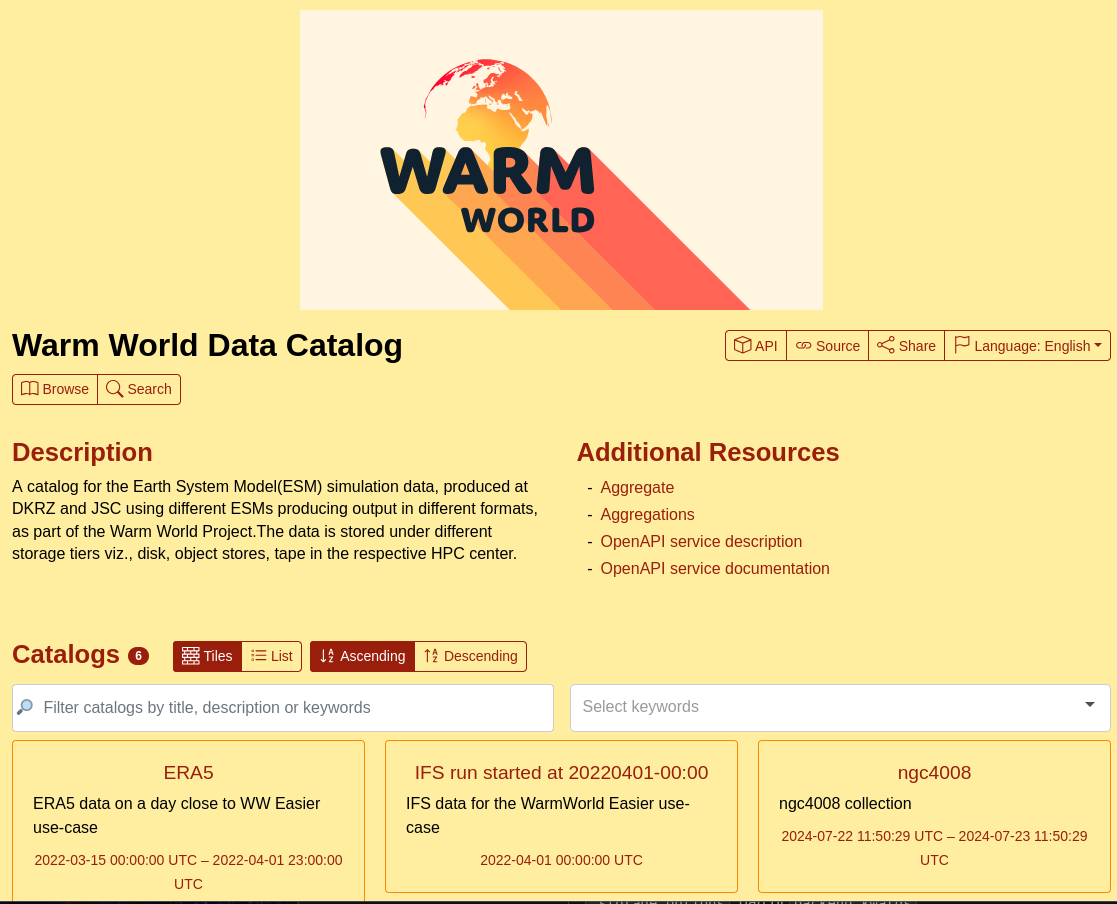
On the top of the side there are additional buttons:
Browse opens a sidebar with the included collections
Seach goes to the search functionality, that we will describe in detail below
API gives an overview on the features supported by the underlying catalog
Source gives the link to the STAC catalog
Share allows sharing of this view
Language allows to change the language of control elements of the STAC browser. This will not change the language of the descriptions
Browsing a Collection
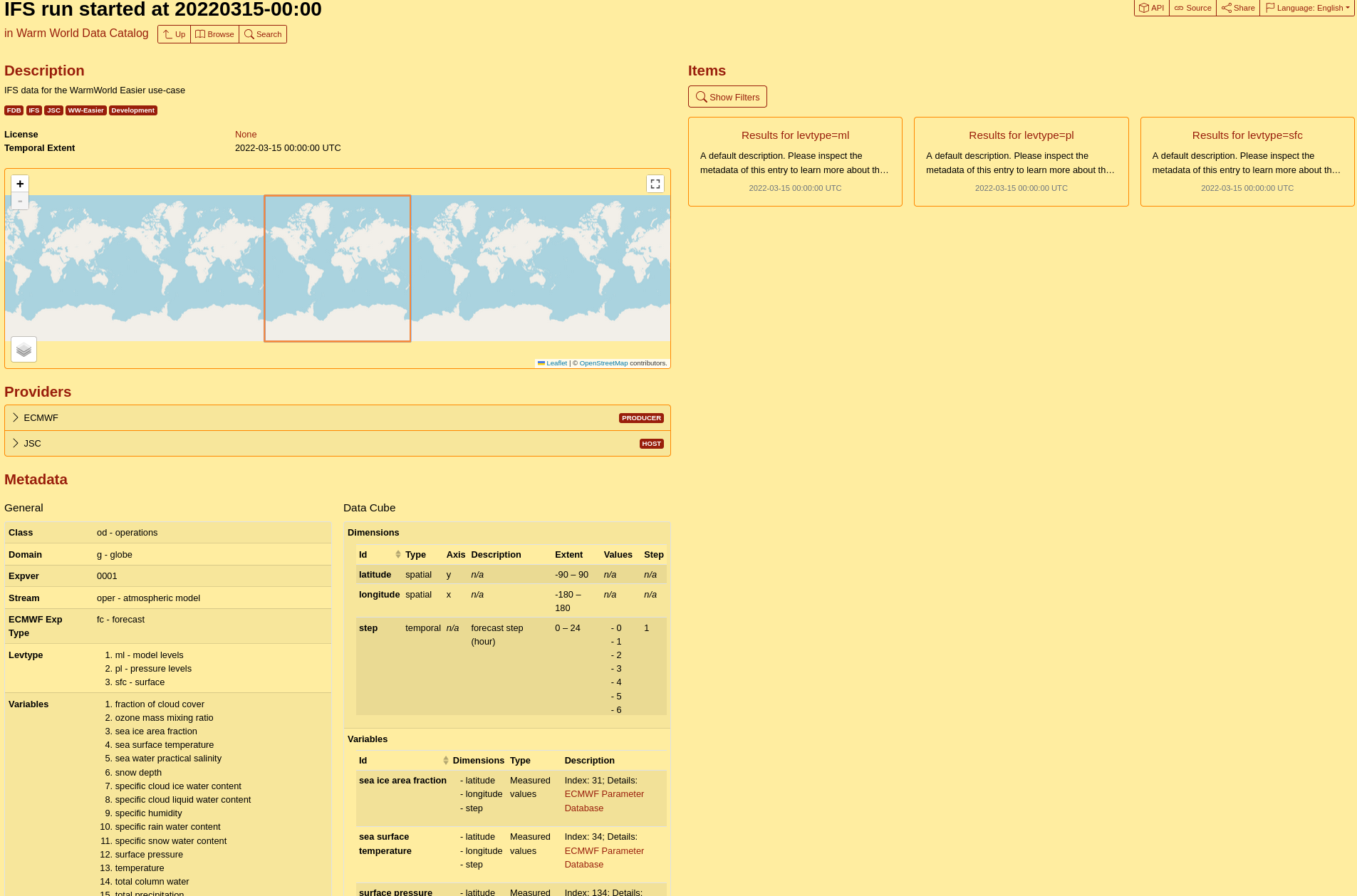
Clicking on one of the collections will give us a detailed view on its metadata and items. On the top we see the description, the list of keywords, license and the temporal extent. The map shows the temporal extent of the dataset, here the hole world for a global forecast. The providers block lists the contributing institutions, which can be extended for additional information. The largest block shows the metadata. Here, we have a separation in general metadata and the data cube extension. The latter can be used to describe the dimensions (spatial and temporal) of a dataset. The variables than include a list of dimensions and a more detailed description. The blocks are quite large and support scroll bars to display all columns for an entry or additional rows with more entries.
On the right hand side a list of included items is given. For datasets of ECMWF, we currently separate the dataset in the different level types like model levels, pressure levels and surface variables.
Finding the Collection ID
An important point is the collection ID, that we need to open a collection in python with the pystac_client.
Here, we can click on the source button in the top right. This opens a small pop-up including the collection ID in a field with a copy button.
This also contains a link to the collection within the STAC catalog (can be displayed as JSON in a web browser.).
Browsing an Item
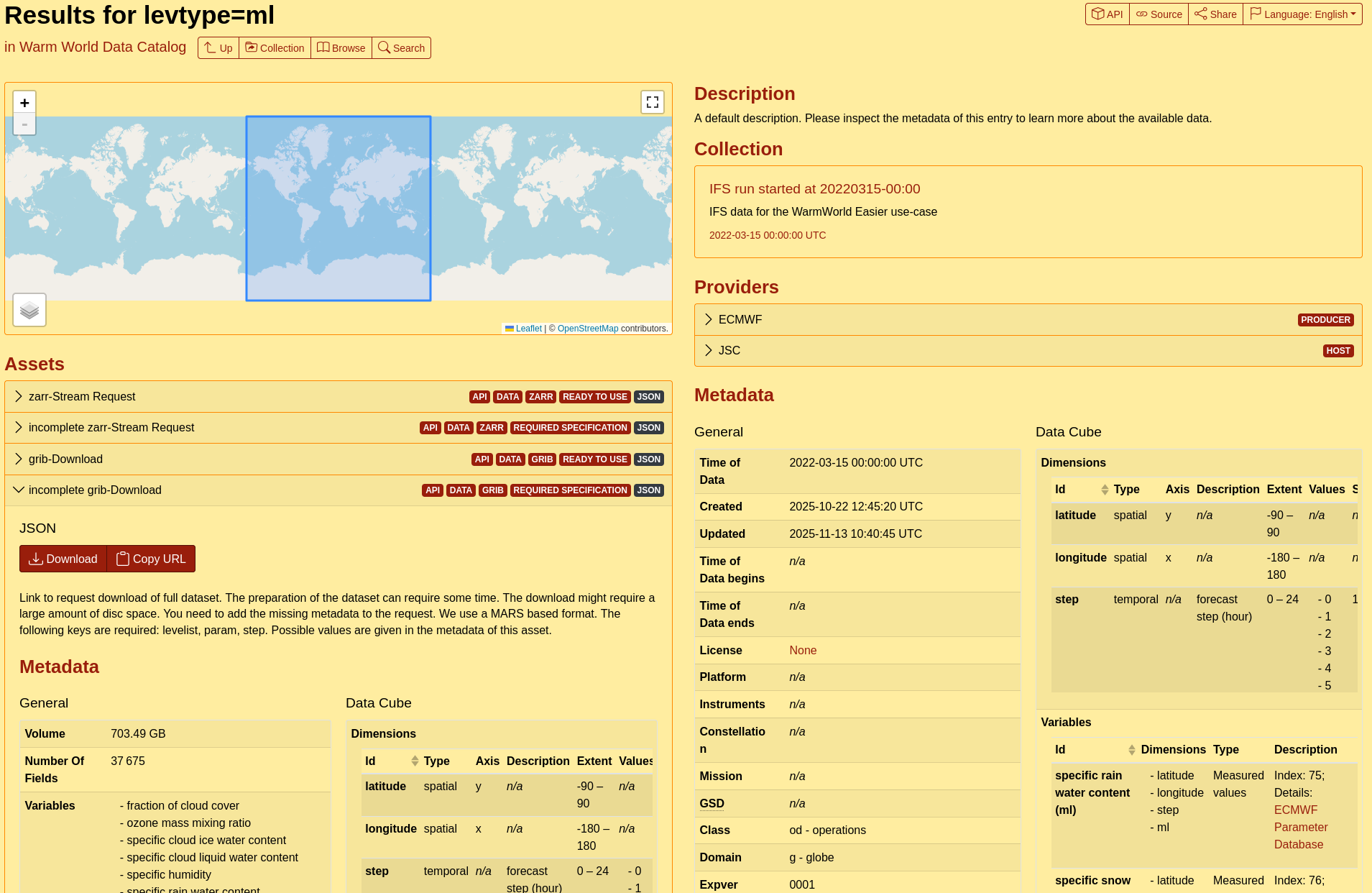
After clicking on an item, we end up in a similar view. Compared to a collection some elements have been moved. The main differences are the exchange of the items by a summary of the collections, that contains this element. Also temporal extend and license are less prominent on this view.
The main new element is the list of assets. Each asset is an option to access the described dataset. The presented example is accessible through two main services, a download in grib format and an access with zarr over http. The details will be presented in another guide. As a brief summary, those assets start a processing chain to provide the requested data and require authentication. Here, we want to focus on the displayed information. It is possible to add a data cube view to each asset. We also include information on the number of global fields in a dataset and the full size of the dataset (here: 37675 fields and about 704GB). The two buttons allow to use the access links directly. The download button opens the underlying URL in a new tab, here we receive an error as we need to authenticate for the underlying service. The copy URL button allows to include the access link directly in a script.
More details on authentication and scripts will be provided in additional guides.
STAC Browser: Search
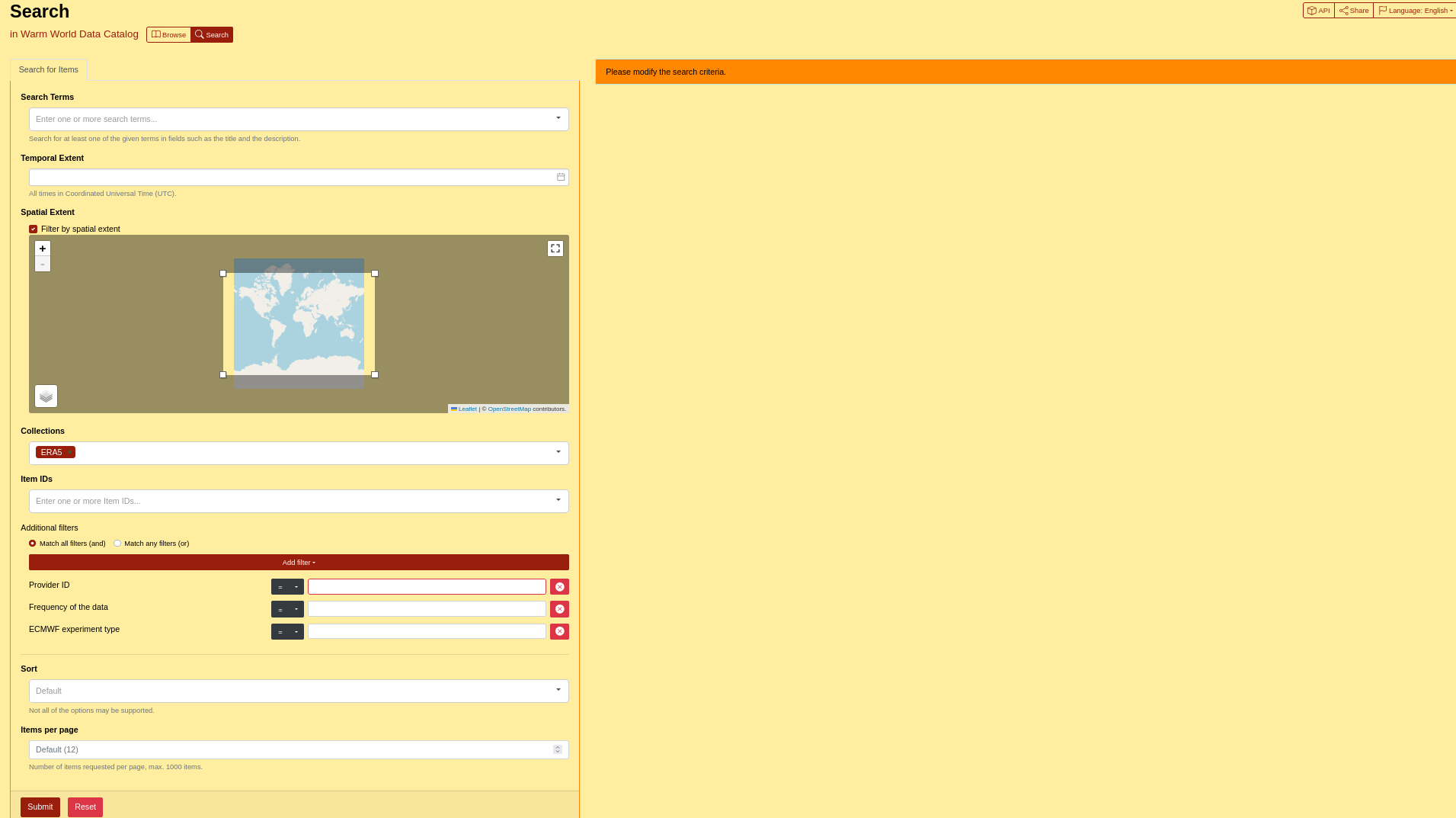
The STAC API supports a number of endpoints that allow searching the catalog for the spatial or temporal extend as well as for different metadata. The screenshot below shows the search view. The general field in the top allows to search the title and description of all items.
The temporal extent and the spatial extent allow for filtering along theses axis. While the temporal extend opens a calender to select date and time, the spatial extent works on the displayed map.
The collections field allows to specify a collection IDs from a drop down list that will be searched. The Item IDs field is a free text field.
The Additional Filters section allows to use further metadata based filters. Those need to be implemented in the API serving the underlying catalog. Thus not all metadata fields can be searched at this point. We added three values as examples. Depending on the defined typo of the parameter, different operators are available (equal, less, greater, matches etc). This allows a quite extensive filtering but also required basic knowledge on the available metadata.
The last two entries allow to adjust how the results are displayed on the right hand site.